Your Norway trip map — all places, color-coded by day
Gowme builds your travel map of Norway and gives you links in Google Maps. Every stop appears as a pin, color-coded by day so you can see at a glance how the trip flows north. Each pin contains the full details: place name, category, entry fee, parking coordinates, access notes, and estimated visit time.
Share it with anyone traveling with you, add your own notes, or open it on your phone on the go. The links appear in your email too, so you can get back to your trip from anywhere.
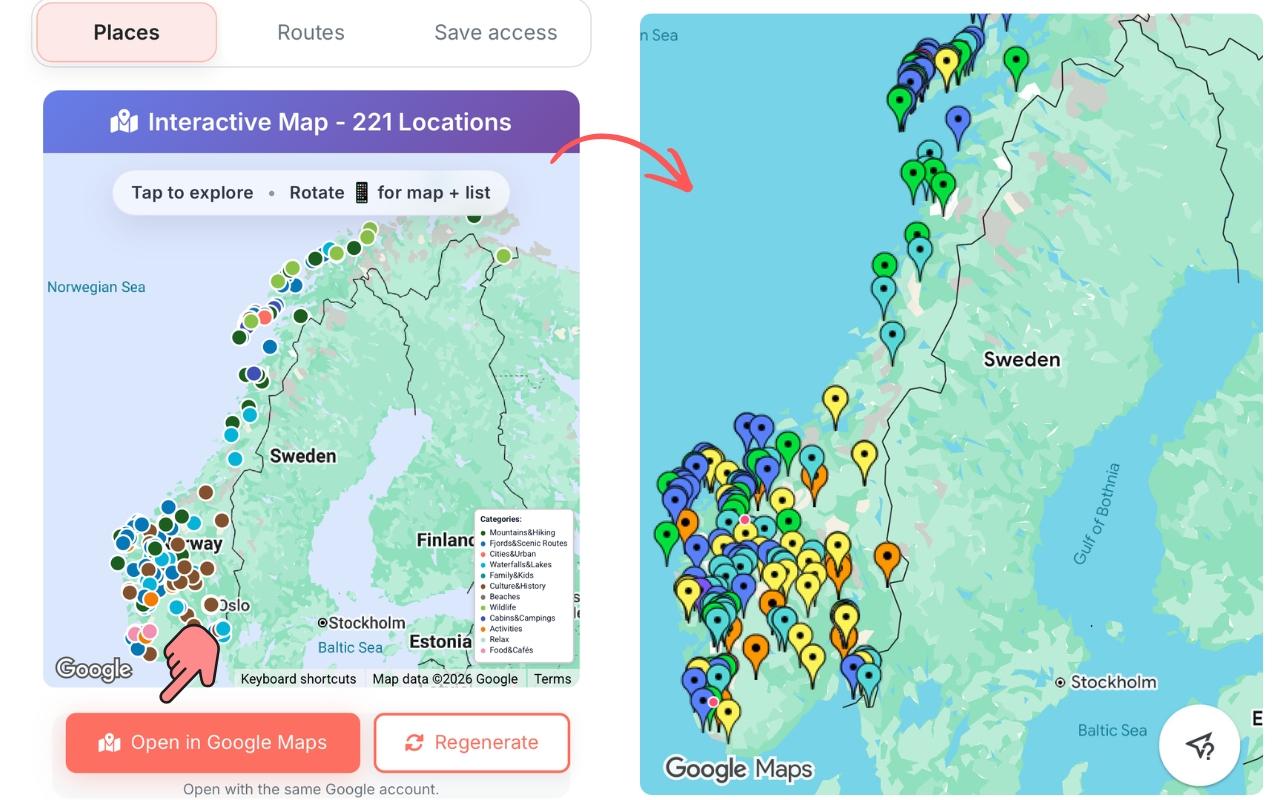
Color-coded by day, with full detail on every pin
Day 1 is one color, Day 2 another — across 10 days you can immediately see which region each day covers. No generic star markers that blur together. Each pin opens to the full data for that location, the same depth you see in the Gowme detail panel — exported and portable.
Navigate each day live in Google Maps
The full trip map in Google Maps is ideal for planning and sharing. On the day itself, you want live navigation. In your route, use Show Detailed Route on any day to build a real Google Maps driving route from the first stop to the last — ready to navigate, with traffic awareness and real-time rerouting. Open it on your phone the morning you leave.
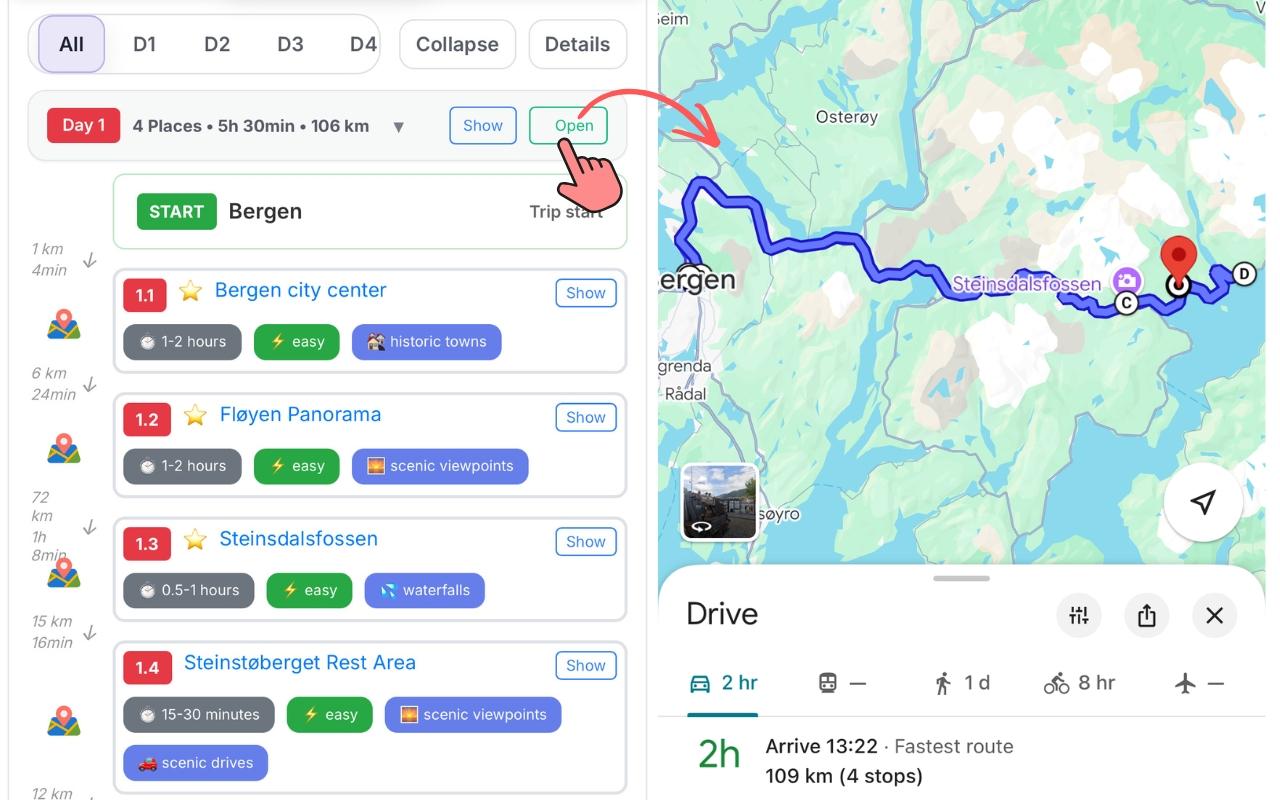
One tap from each place card to its Google Maps pin
Every place card in the Places and Routes view has a Google Maps button. Tap it to open the exact location pin on your phone — useful for checking access roads, current photos, or sharing the specific spot with another person before or during the trip.
Parking is also mapped separately where available — so you open the parking lot directly, not just the general area of the attraction.
Frequently asked questions
- What's the difference between the full trip map and Show Detailed Route?
- The full trip map link gives you a shareable overview of your whole trip — all days, all pins, with full detail per location. Show Detailed Route builds a live driving navigation route for one specific day, with turn-by-turn in Google Maps. They're complementary — one for planning, one for driving.
- Does the map work on iPhone and Android?
- Yes. Your Google Maps links open in the Google Maps app on both iPhone and Android. Keep the app updated for the best experience.
- Can I share the map with family members?
- You can copy links to a specific location or route and share them with others.
- Does Show Detailed Route include ferries?
- Google Maps doesn't natively route via car ferries, so the live route goes around fjords if there's a road alternative, or shows the route as two segments with the ferry crossing in between. The ferry info is in your Gowme itinerary either way.
- Does the map work offline?
- No — Google does not allow the map to be cached, so unfortunately we can only store a detailed description of your route with all the information — but not the map itself.
- Can I open a single place in Google Maps from the planner?
- Yes — every place card has a direct Google Maps pin button. Tap it and the exact location opens in Google Maps.
- Do I need a Google account to open my map?
- If you want to keep all your points saved, you need Google access — use the same email address you used when you created your trip with us.
See how the route is built before you export it: Personalized route planner →